

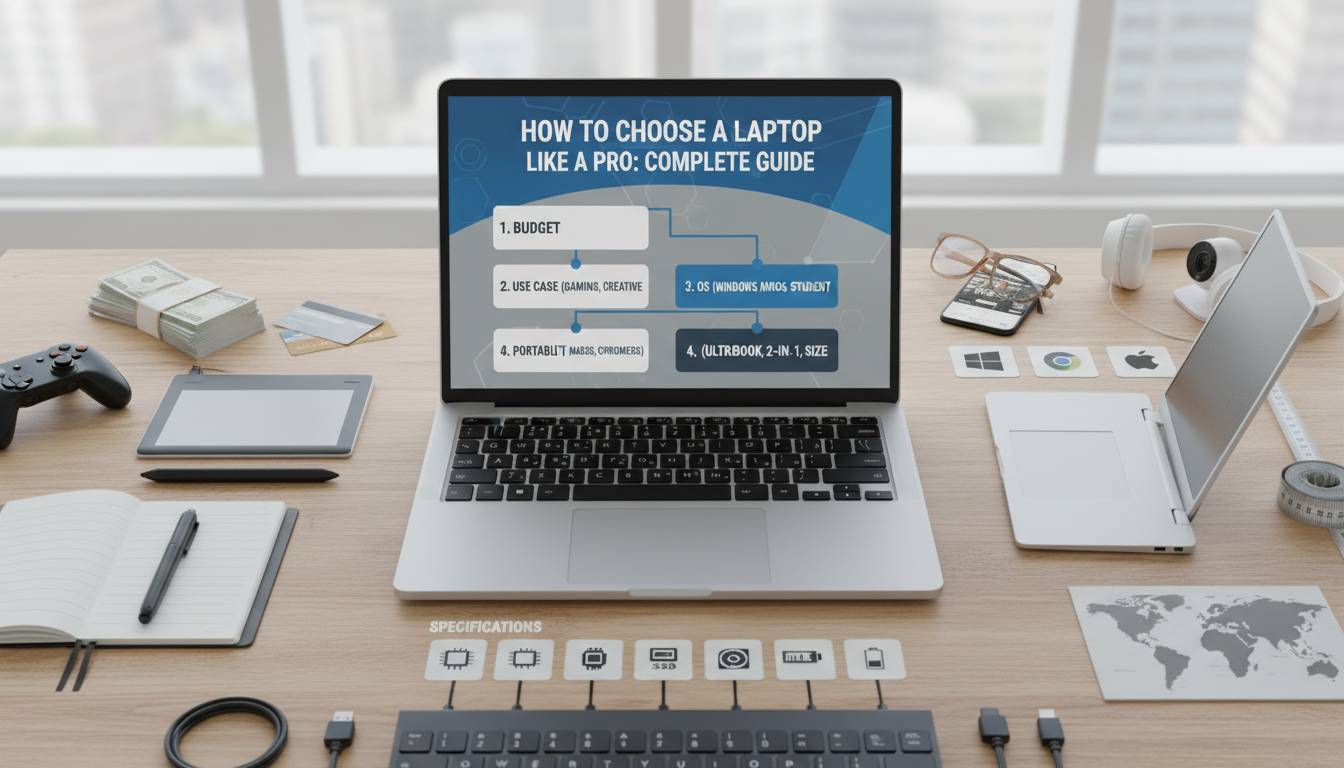
Choosing the right laptop feels overwhelming. Walk into any Best Buy or browse Amazon, and you’re bombarded with specs, prices, and marketing jargon that makes comparison shopping feel like decoding a foreign language. Intel vs. AMD. M3 vs. i7. 8GB vs. 32GB. The decisions never end.
Here’s the direct answer: Choose your laptop based on what you’ll actually use it for, within your budget, prioritizing the specs that match your workflow most frequently. A graphic designer needs different specs than a college student writing papers. A gamer needs different hardware than someone who just browses the web.
But that’s just the starting point. This guide breaks down every decision point so you can buy with confidence—not confusion.
Understanding Your Use Case: The Question That Changes Everything
Before looking at a single spec sheet, you need to answer one question honestly: What will you actually do with this laptop most of the time?
Your primary use case determines which components matter most. This isn’t about finding the “best” laptop—it’s about finding the right laptop for you.
Primary Use Case Categories:
| Use Case | Priority Specs | Budget Range |
|---|---|---|
| Basic productivity (email, web, documents) | RAM, display quality, keyboard | $400-$700 |
| Student/Academic | Portability, battery life, display | $600-$1,200 |
| Business/Professional | Performance, build quality, ports | $1,000-$2,000 |
| Creative work (video, design, 3D) | CPU, GPU, RAM, color-accurate display | $1,500-$3,500+ |
| Gaming | GPU, refresh rate, cooling | $1,000-$3,000+ |
| Development/Programming | CPU, RAM, storage, display | $1,000-$2,500 |
The mismatch between use case and specs is why so many people regret their laptop purchase. A $2,000 MacBook Pro is overkill for someone who only writes emails. Conversely, a $500 budget laptop will frustrate anyone trying to edit video.
Processor (CPU): The Brain of Your Laptop
The processor handles all computational tasks. It determines how fast your laptop runs applications, processes data, and handles multitasking.
Current Processor Options:
| Brand | Consumer Line | Performance Tier | Best For |
|---|---|---|---|
| Intel | Core i3 / i5 / i7 / i9 | Entry to Extreme | General use, business, some creative work |
| AMD | Ryzen 3 / 5 / 7 / 9 | Entry to High | Value-focused users, gaming, productivity |
| Apple | M3 / M3 Pro / M3 Max | Mid to Extreme | Creative professionals, developers, general use |
| Qualcomm | Snapdragon X Elite | New entrant | Battery life, mobile-first users |
Current Generation Matters: Processors are numbered by generation. A 13th Gen Intel Core i5 or AMD Ryzen 7000 series represents current technology. Avoid 2+ generation old processors unless the price is dramatically reduced.
Practical Guidance:
For basic tasks (browsing, documents, video calls), a Core i5, Ryzen 5, or Apple M3 handles everything smoothly. If you’re doing video editing, 3D rendering, or compiling code, step up to Core i7/i9, Ryzen 7/9, or M3 Pro/Max.
Gaming requires a dedicated GPU, but modern processors with integrated graphics (like AMD Ryzen 7000 series with Radeon graphics) can handle light gaming and older titles.
Memory (RAM): How Much Do You Really Need?
RAM determines how many applications run simultaneously without slowdown. More RAM means smoother multitasking.
RAM Recommendations by Use:
| RAM Amount | What It Handles | Who It’s For |
|---|---|---|
| 8GB | Basic productivity, light multitasking | Budget users, casual browsers |
| 16GB | Moderate to heavy multitasking, light creative work | Most professionals, students, general power users |
| 32GB | Heavy creative workloads, development, virtualization | Video editors, 3D artists, software developers |
| 64GB+ | Extreme workloads, professional rendering | Engineers, researchers, specialized professionals |
Here’s the uncomfortable truth: 8GB feels adequate in the store but becomes a bottleneck within 2-3 years as software demands increase. 16GB has become the sweet spot for most users in 2024-2025. If your workflow allows, choose a laptop with upgradeable RAM or select a configuration with 16GB minimum.
Storage: Speed and Capacity Tradeoffs
Storage affects two things: how much you can save locally and how fast your system boots and loads applications.
Storage Types:
-
SSD (Solid State Drive): Standard in modern laptops. Fast, reliable, no moving parts. NVMe SSDs are faster than SATA SSDs.
-
HDD (Hard Disk Drive): Older technology, slower, cheaper per gigabyte. Rare in modern laptops but sometimes appears in budget models as secondary storage.
-
eMMC: Found in very cheap Chromebooks and Windows tablets. Slow and not upgradeable. Avoid for primary storage.
Capacity Recommendations:
| Usage | Minimum | Recommended |
|---|---|---|
| Basic tasks | 256GB | 512GB |
| Creative work | 512GB | 1TB+ |
| Gaming | 512GB | 1TB-2TB |
Many laptops now solder storage directly, making upgrades impossible. If you need more storage, check whether there’s an extra slot or choose a model that allows upgrades.
Display: The Screen You Stare At All Day
You interact with your display every second you use your laptop. Don’t overlook this critical component.
Key Display Specifications:
Resolution: Higher resolution means sharper text and more screen real estate. Full HD (1920×1080) remains standard. 1440p and 4K displays offer more detail but drain battery faster.
Panel Type:
- IPS/PLS: Best all-around—good color accuracy, wide viewing angles. Standard for most users.
- OLED: Superior contrast, deeper blacks, better color reproduction. Found in premium models.
- TN: Cheaper, faster response times, but poor viewing angles and color accuracy. Avoid for creative work.
Brightness: Measured in nits. 250-300 nits is standard. For use in bright environments or near windows, aim for 400+ nits.
Color Accuracy: If you do any visual work, check color gamut coverage. sRGB 100% is baseline. Adobe RGB and DCI-P3 coverage matter for professional creative work.
Refresh Rate: 60Hz is standard. Gaming displays go up to 120Hz, 144Hz, or even 240Hz. Higher refresh rates mean smoother motion.
Touchscreen: Useful for some workflows (digital art, note-taking) but adds cost and can make displays more reflective.
Graphics: Integrated vs. Dedicated
Graphics processing determines how your laptop handles visuals, from moving windows to rendering 3D scenes.
Integrated Graphics: Built into the processor. Fine for basic tasks, video playback, and light gaming. Intel Iris Xe, AMD Radeon integrated graphics, and Apple Silicon all handle these tasks capably.
Dedicated (Discrete) Graphics: Separate GPU chip. Required for serious gaming, video editing, 3D modeling, and machine learning. NVIDIA dominates the laptop GPU market with its RTX series.
GPU Recommendations:
| Use Case | Recommended Graphics |
|---|---|
| Basic productivity | Integrated graphics sufficient |
| Light photo editing | Integrated or RTX 3050 |
| Video editing | RTX 3060/4060 or better |
| 3D modeling/rendering | RTX 4070/4080 or better |
| Serious gaming | RTX 4060 or better |
Portability: Size, Weight, and Battery Life
Laptop weight directly impacts how often you’ll actually carry it. A heavy laptop that stays on your desk defeats the purpose of portability.
Size Guide:
| Screen Size | Weight Range | Best For |
|---|---|---|
| 13-14″ | 2-3 lbs | Maximum portability, frequent travelers |
| 15.6″ | 3-5 lbs | Balanced choice, most users |
| 17″ | 5-7+ lbs | Desktop replacement, workstation tasks |
Battery Life Expectations:
Real-world battery life varies significantly based on usage, display brightness, and processor. Marketing claims are often optimistic.
- All-day battery (8+ hours): Apple MacBooks, premium Windows ultrabooks, Snapdragon-based laptops
- Good battery (5-8 hours): Most mid-range Windows laptops
- Limited battery (3-5 hours): Gaming laptops, budget models, workstations under load
Operating System: Windows, macOS, or Chrome?
Your operating system choice affects software compatibility, ecosystem, and user experience.
Windows: The most versatile option. Runs the widest range of software, most games, and offers maximum hardware variety. Best for business, gaming, and general use.
macOS: Exclusive to Apple hardware. Excellent for creative professionals, developers, and those in the Apple ecosystem. Seamless integration with iPhones and iPads. Limited software compared to Windows but strong native app selection.
Chrome OS: Found on Chromebooks. Lightweight, secure, designed for web-based workflows. Excellent value for students and basic users. Limited offline functionality and software ecosystem.
Linux: For developers and technical users. Requires either purchasing a Linux laptop or installing it yourself. Not recommended for most consumers.
Budget Breakdown: What You Get at Each Price Point
Understanding what money gets you at each level prevents overspending or buyer’s remorse.
$300-$500: Basic Chromebooks and budget Windows laptops. Adequate for web browsing, email, and document work. Expect plastic builds, lower-resolution displays, and mediocre battery life.
$500-$800: Entry-level Windows ultrabooks. Solid performance for productivity. Some models offer good displays and decent build quality. The sweet spot for budget-conscious buyers.
$800-$1,200: Quality mid-range machines. Excellent performance, good displays, solid construction. Most professionals and students find everything they need here.
$1,200-$2,000: Premium Windows laptops and MacBook Airs. Superior displays, premium materials, powerful components. This is where productivity professionals and serious students should shop.
$2,000+: High-end workstations and gaming machines. Maximum performance, best displays, professional-grade components. Only necessary for specialized workflows.
Common Mistakes to Avoid When Buying a Laptop
These errors cause more regret than any spec choice:
Mistake #1: Buying Based on Marketing
“Ultra-thin,” “superfast,” and “premium” mean nothing specific. Focus on actual specs and real-world reviews.
Mistake #2: Ignoring Thermal Performance
Powerful components throttle under heat. Check reviews for thermal management—some slim laptops overheat under sustained loads.
Mistake #3: Not Testing the Keyboard and Trackpad
You use these input devices constantly. A cramped keyboard or imprecise trackpad ruins the experience.
Mistake #4: Overlooking Connectivity
Count your ports. USB-C-only laptops may require dongles. SD card slots matter for photographers. HDMI outputs matter for presentations.
Mistake #5: Ignoring Upgrade Options
Many laptops can’t be upgraded. Memory and storage are often soldered. Factor this into your initial purchase—buy for the future, not just today.
Mistake #6: Chasing the Latest Generation
Newer isn’t always better. Previous-generation processors offer nearly identical performance at reduced prices. Focus on value, not release dates.
Expert Insights: What Professionals Recommend
Industry professionals consistently emphasize one theme: know your workflow before shopping specs.
On the importance of use case assessment:
“The biggest mistake I see is people buying overkill machines. A surgeon doesn’t need a gaming laptop. A student doesn’t need a mobile workstation. Match the machine to the actual work.” — Technology consultant and IT procurement specialist
On future-proofing:
“Buy for where you’re going, not where you are. If you’re starting college, think about what you’ll need in your junior and senior years, not just freshman year. RAM and storage are harder to upgrade than you think.” — Consumer electronics reviewer
On ecosystem lock-in:
“If you’re already in the Apple ecosystem with an iPhone and iPad, a MacBook multiplies that value. Same with Microsoft and Android. But if you’re platform-agnostic, Windows offers the most flexibility.” — Technology journalist specializing in consumer electronics
Frequently Asked Questions
How much should I spend on a laptop for college?
For most college students, $800-$1,200 provides the best balance of performance, portability, and durability. Focus on at least 16GB RAM, good battery life (8+ hours), and a comfortable keyboard. A lightweight 13-14″ laptop reduces back strain from carrying books and laptop between classes.
Is 8GB RAM enough in 2024-2025?
For basic tasks like web browsing, email, and document work, 8GB remains adequate. However, for any multi-tasking, video calls while running other apps, or creative work, 16GB significantly improves experience and extends the laptop’s useful life. If your budget allows, prioritize 16GB.
Should I wait for Black Friday or buy now?
Laptop prices fluctuate throughout the year, with significant discounts during Black Friday, Prime Day, and back-to-school season. If you need a laptop now, buying at regular price is reasonable—waiting months for a discount doesn’t make sense if your current machine is failing. However, if your purchase is discretionary, timing around major sales events saves $100-$300.
What’s the best laptop brand?
No single brand dominates all categories. Apple leads in build quality and ecosystem integration for Mac users. Dell and Lenovo offer strong business and consumer options across all price points. HP provides good value in the mid-range. ASUS delivers excellent gaming and productivity options. Research specific models rather than brand loyalty.
How long should a laptop last?
A well-built laptop with sufficient specs lasts 5-7 years with proper care. Battery capacity degrades over time—expect to replace the battery after 3-5 years if keeping the laptop longer. Consumer-grade laptops may show wear earlier than business-class or premium models.
Should I buy extended warranty coverage?
For most consumers, manufacturer warranties (typically 1 year) plus a credit card’s extended protection are sufficient. Extended warranties from retailers often have exclusions and limited coverage. However, if your laptop will be used heavily or travels frequently, the peace of mind may justify the cost for premium models.
Final Recommendation: How to Choose With Confidence
Choosing a laptop comes down to three steps:
First, honestly assess your primary use case and prioritize the specs that matter for that workflow.
Second, set a realistic budget based on what that use case actually requires—you don’t need a $3,000 machine to write emails, but you won’t succeed with a $400 machine for video editing.
Third, test the keyboard, trackpad, and display in person if possible. Specs don’t capture the daily experience of using a device you’ll touch thousands of times over the next several years.
The best laptop isn’t the most expensive one—it’s the one that fits your actual needs, your actual workflow, and your actual budget. Every recommendation in this guide flows from that principle. Use it, and you’ll buy with confidence instead of buyer’s remorse.












Leave a comment