

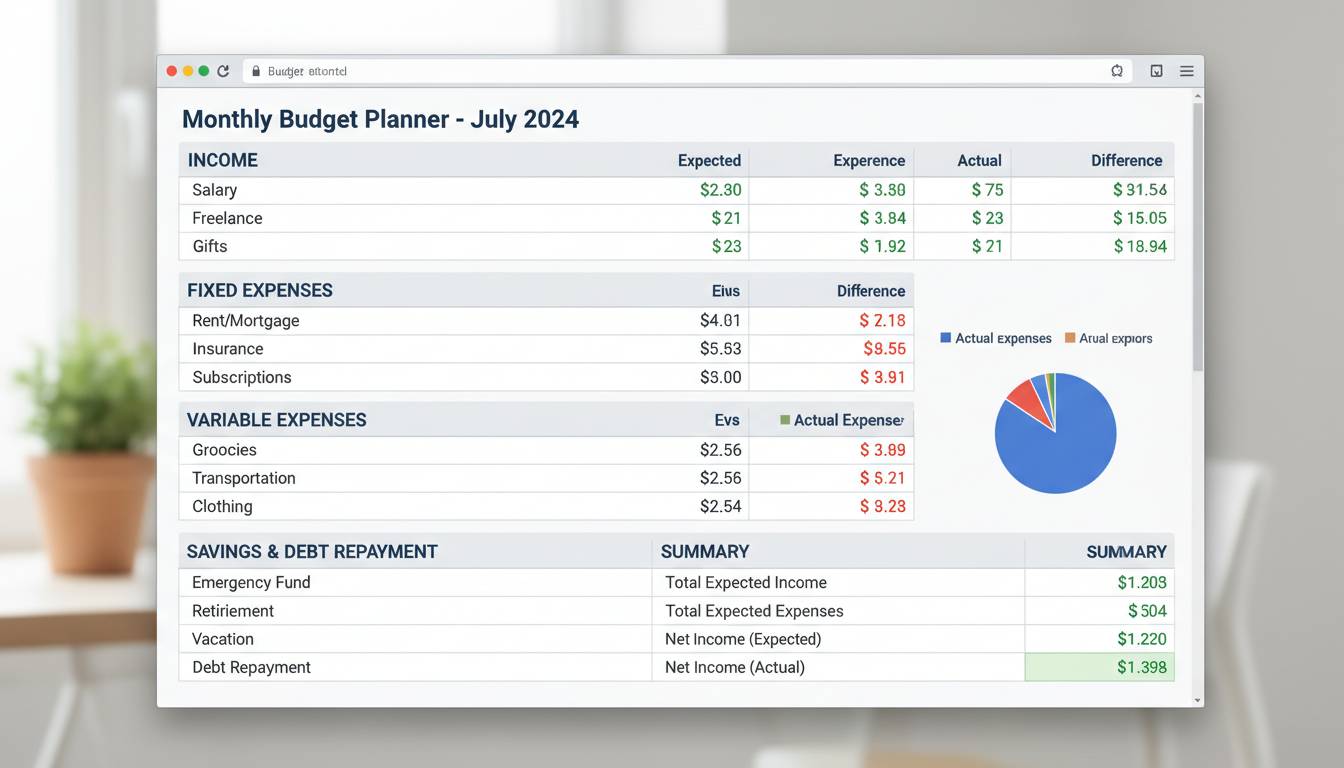
Creating a budget spreadsheet is one of the most powerful financial tools you can build for yourself. Unlike complicated apps or expensive software, a well-designed spreadsheet gives you complete control over your money, costs nothing to start, and adapts to your exact situation. Whether you’re paying off debt, saving for a home, or just want to understand where every dollar goes, this guide walks you through building a budget spreadsheet from scratch—one that you’ll actually use.
Why Budget Spreadsheets Work Better Than Apps
Budget apps promise convenience, but they often come with monthly fees, data privacy concerns, and limited customization. A spreadsheet puts you in complete control. You decide what to track, how to categorize expenses, and how to visualize your progress.
The key advantage is flexibility. According to a 2024 survey by the National Foundation for Credit Counseling, 65% of Americans who use spreadsheets for budgeting report feeling more in control of their finances compared to those using app-only solutions. This isn’t about rejecting technology—it’s about owning your data.
Spreadsheets also teach you the mechanics of budgeting. When you manually enter each expense, you become acutely aware of spending patterns that apps might hide behind attractive charts. That awareness is the foundation of financial change.
Essential Components of Your Budget Spreadsheet
Every effective budget spreadsheet needs five core sections. Skipping any of these limits your ability to track and improve your financial health.
1. Income Sources
List every money stream—salary, freelance work, side hustles, government benefits, investment dividends. Use separate rows for each source so you can see exactly how much you earn from where. Include the frequency: weekly, bi-weekly, monthly, or annually.
2. Fixed Expenses
These are the bills that stay the same each month: rent or mortgage, car payments, insurance premiums, subscription services, student loan payments. Create columns for the amount due and the due date. This clarity prevents late fees and helps you plan around non-negotiable costs.
3. Variable Expenses
Groceries, gas, utilities, entertainment, dining out—anything that changes month to month goes here. The goal isn’t to eliminate these but to understand them. Track actual spending against what you planned, and you’ll quickly identify areas for adjustment.
4. Savings and Goals
Your budget should fund your future, not just manage your present. Create separate lines for emergency funds, retirement contributions, vacation savings, debt repayment, and other goals. Assign each goal a monthly target amount.
5. Summary Dashboard
This is where the math happens. Calculate total income, total expenses, and the difference (what’s left or what’s overspent). Add visual indicators—color-coding works well here—so you can scan your financial health in seconds.
Step-by-Step: Building Your Budget Spreadsheet
Setting Up the Structure
Open your preferred spreadsheet application—Google Sheets or Microsoft Excel both work well. Create a new blank workbook and name it “Monthly Budget [Year].”
In Row 1, create these column headers: Category, Budgeted Amount, Actual Amount, Difference, and Notes. This row becomes your permanent header; freeze it so it stays visible as you scroll.
Creating Income Section
Starting in Row 3, label a section “INCOME.” List each income source in the Category column. Enter your expected monthly amount in the Budgeted Amount column. You’ll fill in Actual Amount as money comes in.
At the bottom of this section, add a row labeled “Total Income” and use the SUM function to add all income sources. The formula looks like this: =SUM(B4:B10) (adjust the range based on your actual rows).
Building Expense Categories
Skip a row, then create your expense sections. Group them logically: Housing, Transportation, Food, Utilities, Personal, Entertainment, and Debt Payments. Under each header, list specific items.
For example, under Food, you might have Groceries, Restaurants, and Coffee Shops. Under Transportation, list Gas, Maintenance, and Insurance. The more specific you are now, the more useful your data becomes later.
Use the same SUM formula at the bottom of each category to get subtotals. Then create a grand total for all expenses.
Adding the Summary Section
At the bottom of your sheet, create a summary area. Calculate three critical numbers:
- Total Income: Reference your income total cell
- Total Expenses: Reference your expense total cell
- Net Cash Flow: Subtract expenses from income using
=Btotal_income - Btotal_expenses
A positive number means you’re saving money. A negative number means you’re spending more than you earn—and that’s the number that demands attention.
Excel vs. Google Sheets: Which Should You Use?
Both Excel and Google Sheets create excellent budget spreadsheets. The right choice depends on your needs.
Google Sheets excels at accessibility. Your budget is available on any device with internet access, automatically saves to the cloud, and easily shares with family members. Collaboration is seamless. The downside: you need internet access to work, and some advanced features require Google Workspace subscriptions.
Microsoft Excel offers more powerful calculation tools, especially for complex financial modeling. If you want to build multi-year projections or analyze investment scenarios, Excel’s functions are superior. However, Excel files don’t sync automatically across devices without cloud storage setup.
For most people building their first budget spreadsheet, Google Sheets is the practical choice. It’s free, requires no software installation, and automatically backs up your data. You can always migrate to Excel later if your needs become more complex.
Budget Categories: How to Organize Your Expenses
Proper categorization transforms a basic spreadsheet into a powerful financial tool. Too broad, and you miss insights. Too detailed, and tracking becomes burdensome.
The 50/30/20 Framework
A popular approach is the 50/30/20 rule: allocate 50% of after-tax income to needs (housing, utilities, groceries, insurance), 30% to wants (entertainment, dining out, hobbies), and 20% to savings and debt repayment.
This framework gives you targets to aim for. When you categorize expenses according to this system, you can quickly see if your spending aligns with your goals.
Essential Categories to Track
Needs (Must-Haves):
- Mortgage or rent
- Utilities (electric, gas, water, internet)
- Groceries
- Insurance (health, car, home)
- Minimum debt payments
- Transportation to work
Wants (Flexible Spending):
- Dining out and takeout
- Entertainment and streaming services
- Hobbies and subscriptions
- Shopping and clothing
- Vacations and travel
Savings and Debt:
- Emergency fund contributions
- Retirement account deposits
- Extra debt payments
- Investment contributions
- Sinking funds for large purchases
Tips for Maintaining Your Budget Spreadsheet
Building the spreadsheet is easy. Using it consistently is the challenge. These strategies help you maintain the habit.
Update DAILY. Spend two minutes each evening recording that day’s purchases. Waiting until the end of the month creates an overwhelming task that most people abandon. Daily updates take less than a minute per transaction and keep your data accurate.
Review WEEKLY. Set a weekly appointment—Sunday evenings work well—to compare actual spending against your budget. This catch-up rhythm helps you adjust before problems become unmanageable.
Analyze MONTHLY. At month’s end, review your totals. Which categories surprised you? Where did you overspend, and why? This analysis is where real financial growth happens. You’re not judging yourself—you’re gathering information to make better decisions.
UseConditional Formatting. In both Excel and Google Sheets, you can set rules that automatically color-code cells based on values. Make overspent categories turn red and under-budget categories turn green. This visual feedback keeps you aware without requiring manual checking.
Common Budget Spreadsheet Mistakes to Avoid
Even well-intentioned budgeters fall into these traps. Recognizing them upfront saves frustration.
Mistake #1: Being Too Detailed
Tracking every single purchase sounds thorough but becomes exhausting. If your budget takes 30 minutes daily to maintain, you won’t sustain it. Start with main categories and add detail only when you need the information.
Mistake #2: Ignoring Irregular Expenses
Annual subscriptions, birthday gifts, car registration fees—these don’t appear monthly but still demand money. Create a “sinking fund” category where you save small amounts each month for these predictable irregular expenses.
Mistake #3: Setting Unrealistic Limits
If you budget $200 monthly for groceries but consistently spend $350, lowering the budget to $200 doesn’t fix the problem—it just makes you feel like a failure. Instead, investigate why you’re overspending and adjust based on reality.
Mistake #4: Forgetting to Budget for Fun
A budget that allows zero entertainment spending sets you up for failure. Life needs joy. Budget reasonable amounts for hobbies, dining out, and leisure. Enjoying your money while staying responsible is the goal.
Frequently Asked Questions
What’s the easiest budget spreadsheet for beginners?
Google Sheets offers pre-built budget templates accessible via File > New > From template > Budget. These templates include pre-formulated categories, automatic calculations, and visual charts. They’re excellent starting points—you can customize them to match your specific situation.
How often should I update my budget spreadsheet?
Daily updates work best for accuracy, but the minimum is weekly. The longer you wait between updates, the less accurate your data becomes and the more overwhelming the task feels. Even two minutes each evening is sufficient for most people.
Should I include cash spending in my budget spreadsheet?
Absolutely. Cash spending is notoriously easy to forget, which creates gaps in your financial picture. Keep receipts from cash purchases and record them when you get home. Alternatively, withdraw a set cash amount each week and treat that as your entire cash budget—you’ll naturally track it because when it’s gone, it’s gone.
Can I use a budget spreadsheet for household budgeting with a partner?
Yes, and shared spreadsheets are highly effective for couples. Use Google Sheets so both people can access and edit the document simultaneously. Assign specific expense categories to each person so both are responsible for tracking their areas. Monthly budget meetings where you review spending together keep everyone aligned.
Conclusion
Your budget spreadsheet is only as good as your commitment to using it. The perfect template, the most beautiful formatting, and the cleverest formulas mean nothing if the document sits unused.
Start simple. Build a basic version with income, major expenses, and savings. Use it for one month. Then refine based on what you learn. Budgeting is a skill that improves with practice—you’re not supposed to get it perfect immediately.
The power of a spreadsheet is that it adapts to your life. When your income changes, update the numbers. When your priorities shift, adjust your categories. This tool serves you, not the other way around.
Begin today. Open a new sheet. Enter your income. List your bills. Watch where your money actually goes. Within three months, you’ll have transformed a blank document into a clear picture of your financial life—and the foundation for every financial goal you want to achieve.











Leave a comment